Vein Miner
Instantly mine connected ores and blocks by holding the Walk key (LEFT ALT) while breaking a single block!
Features
Hold the Walk key (LEFT ALT) while mining to activate veinmining.
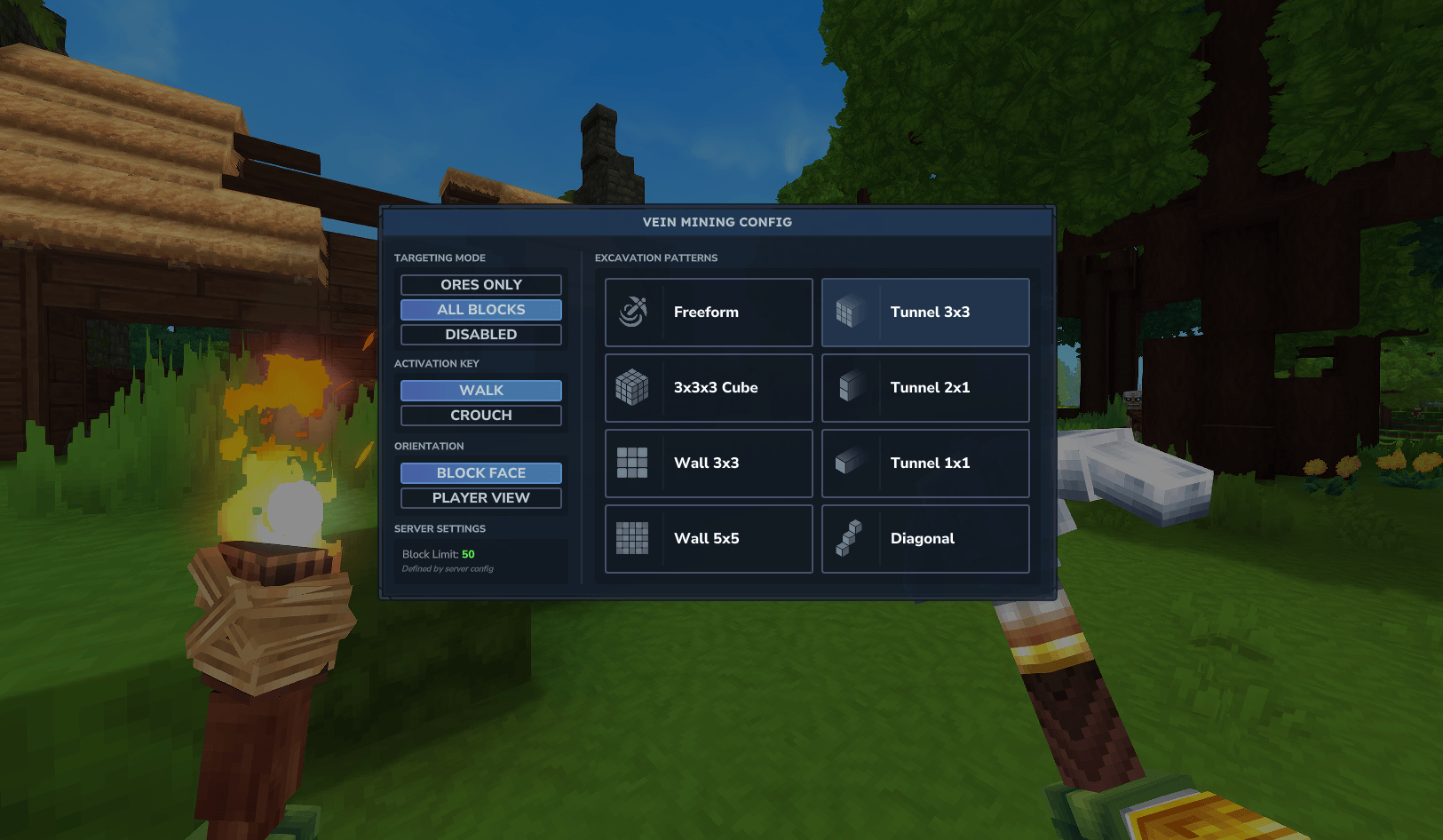
Open the GUI with /vm or use chat commands to configure Target Mode, Excavation Pattern, Orientation, and Key.
Tools lose durability based on the total number of blocks broken.
Consolidate all loot from the vein into a single pile at your feet or the source block.
Mining Modes (/vm)
Targeting
All Blocks — Mines connected blocks of any type (Default)
Ores Only — Mines connected ore veins
Off — Temporarily disables veinmining
Excavation Patterns
Freeform — Follows the vein in any direction (Classic)
Cube — Excavates a 3x3x3 area
Tunnel — Available in 1x1, 1x2 (Player), and 3x3
Wall — Mines a flat surface (3x3 or 5x5)
Diagonal — Mines a diagonal staircase
Orientation
Block Face — Aligns the pattern to the side of the block hit.
Player View — Aligns the pattern to the camera view.
Chat Configuration
All settings can be configured directly via chat with smart parsing (aliases) and formatted confirmation messages.
Available Flags:
--mode: all, ores, off
--pattern: free, cube, tunnel1 (t1), tunnel2 (t2), tunnel3 (t3), wall3 (w3), wall5 (w5), diagonal (diag)
--orientation: block, player
--key: walk, crouch, always
Example Command:
/vm --mode all --pattern cube --key always
Configuration File
Advanced settings are available in the VeinMining.json config file:
Maximum vein size per player group
Durability multipliers
Drop positioning (player, break, block)
Drop bundling/consolidation toggle
Tool requirement toggle (Requires Pickaxe, Axe, Shovel, or Shears)
Instant break blocks toggle
------------
Troubleshooting & FAQ
World or Game Won't Start
If the world no longer loads after an update, the configuration file format may have changed.
Navigate to: %APPDATA%HytaleUserDataSavesYourWorldNamemods
Delete the folder named EineNT_VeinMining.
Rejoin the world; the folder and config will regenerate automatically.
Mod Not Working?
Check for Duplicates: Ensure only one version of the .jar file is in the %APPDATA%HytaleUserDataMods folder.
Verify Installation: Run /vm. If the GUI opens or chat responds, the mod is active.
Check Status: Run /pl m (requires OP/Admin). If EineNT:VeinMining is disabled, click to enable it.
Tool Requirement: By default, the mod only works if holding a valid tool (Pickaxe, Axe, Shovel, or Shears).
How to Edit Configs
Configurations are stored per world. To edit them manually:
Go to: %APPDATA%HytaleUserDataSavesYourWorldNamemodsEineNT_VeinMining
Open VeinMining.json with a text editor.
Apply changes by restarting the server or running /pl reload EineNT:VeinMining.
"Failed to reload plugin" Error
If a message appears saying "Failed to reload plugin EineNT:VeinMining!" during startup or reload, this can usually be ignored. The plugin most likely loaded correctly despite the warning message.